How to Access Delegated Gmail Account


1

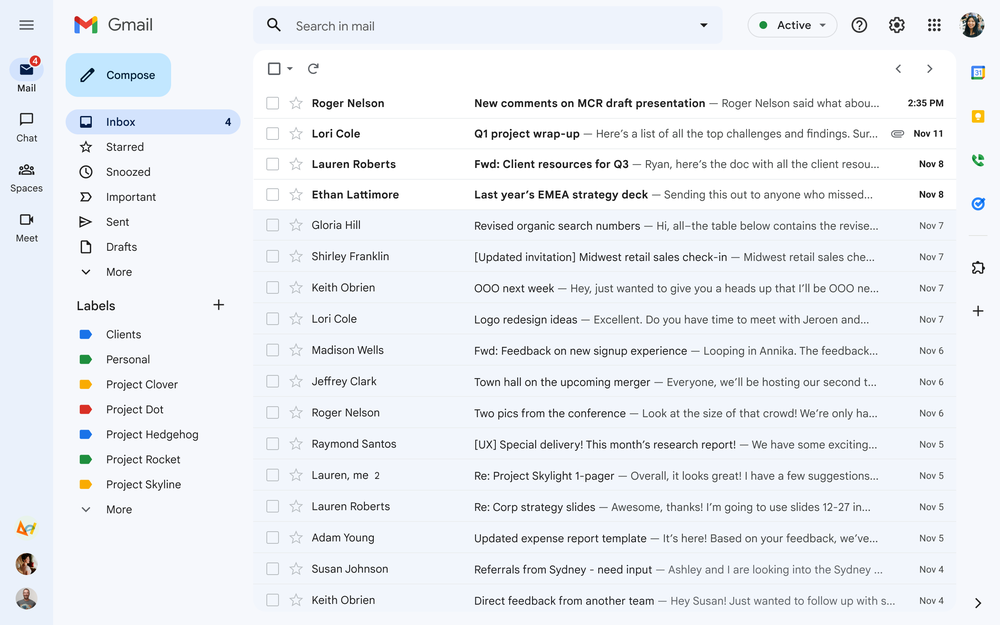
Open Gmail and sign in to your own work account

Go to https://mail.google.com and sign in with your normal work email address

image-20260521-064351.png

2

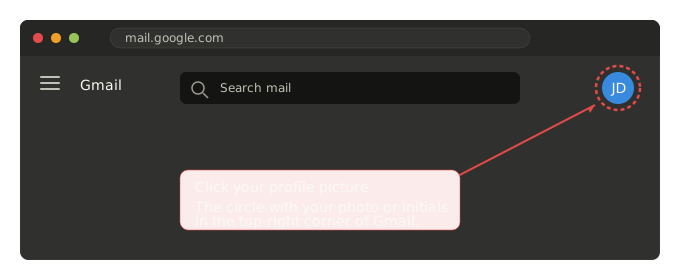
Click your profile picture (top-right corner)

It's the circle showing your photo or your initials, in the very top-right of the Gmail window.

gmail_step2_profile_picture_location.svg


3

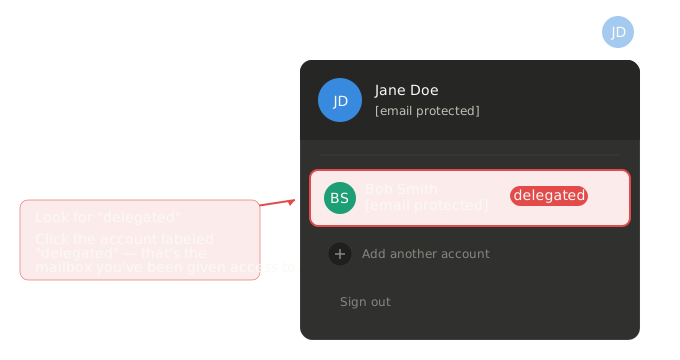
Find the delegated account in the dropdown

A menu will appear. Below your own account, you'll see other accounts you're signed into, plus any delegated accounts. The delegated mailbox will be labeled "(delegated)" next to its name.


4

Click the delegated account name

A new browser tab will open showing the owner's inbox. Your own Gmail stays open in the original tab — you can switch between them freely.

gmail_step3_account_dropdown.svg

5

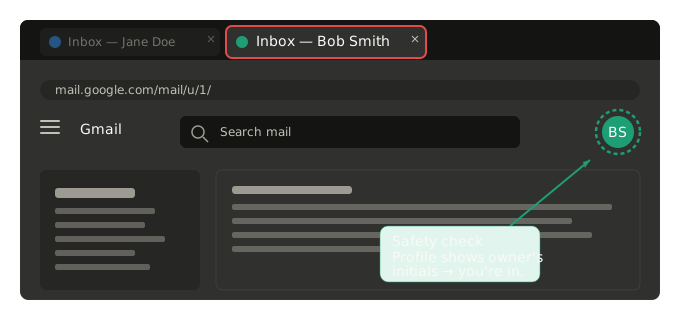
Confirm you're in the right account

Look at the top-right of the new tab. The profile picture should show the owner's name/initials, and clicking it should show their email address. This is your safety check before you send anything.

gmail_step5_new_tab_confirmation.svg


Gmail delegation does not work on the Gmail mobile app.