Install Adobe Acrobat Pro on Windows

Prerequisites

  • Close Word, Outlook, browsers, and any PDF apps.

  • If you have Acrobat Reader, you can keep it—Acrobat Pro will replace it during install.


1

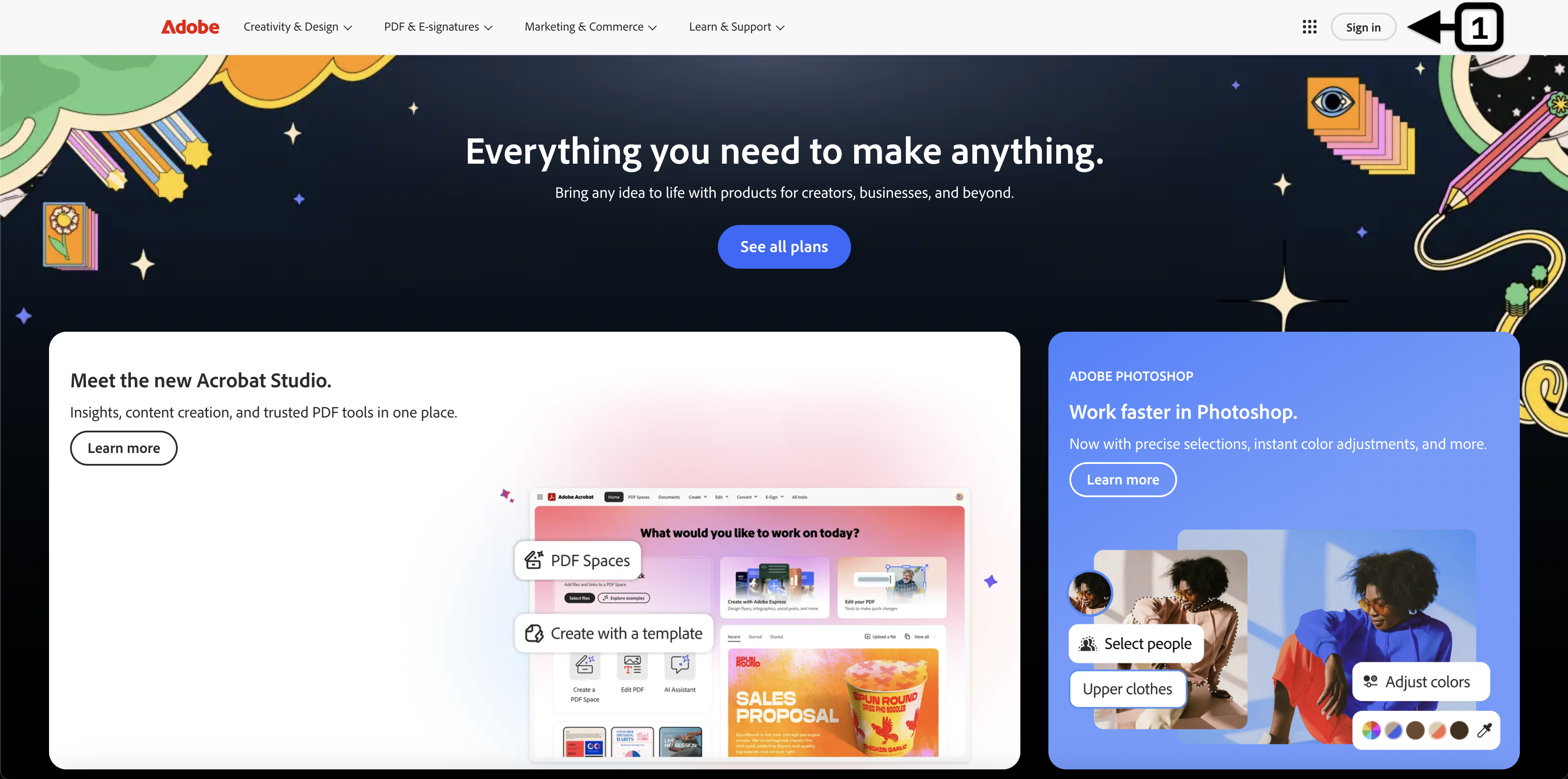
  1. Sign in: Go to adobe.com and click Sign in.

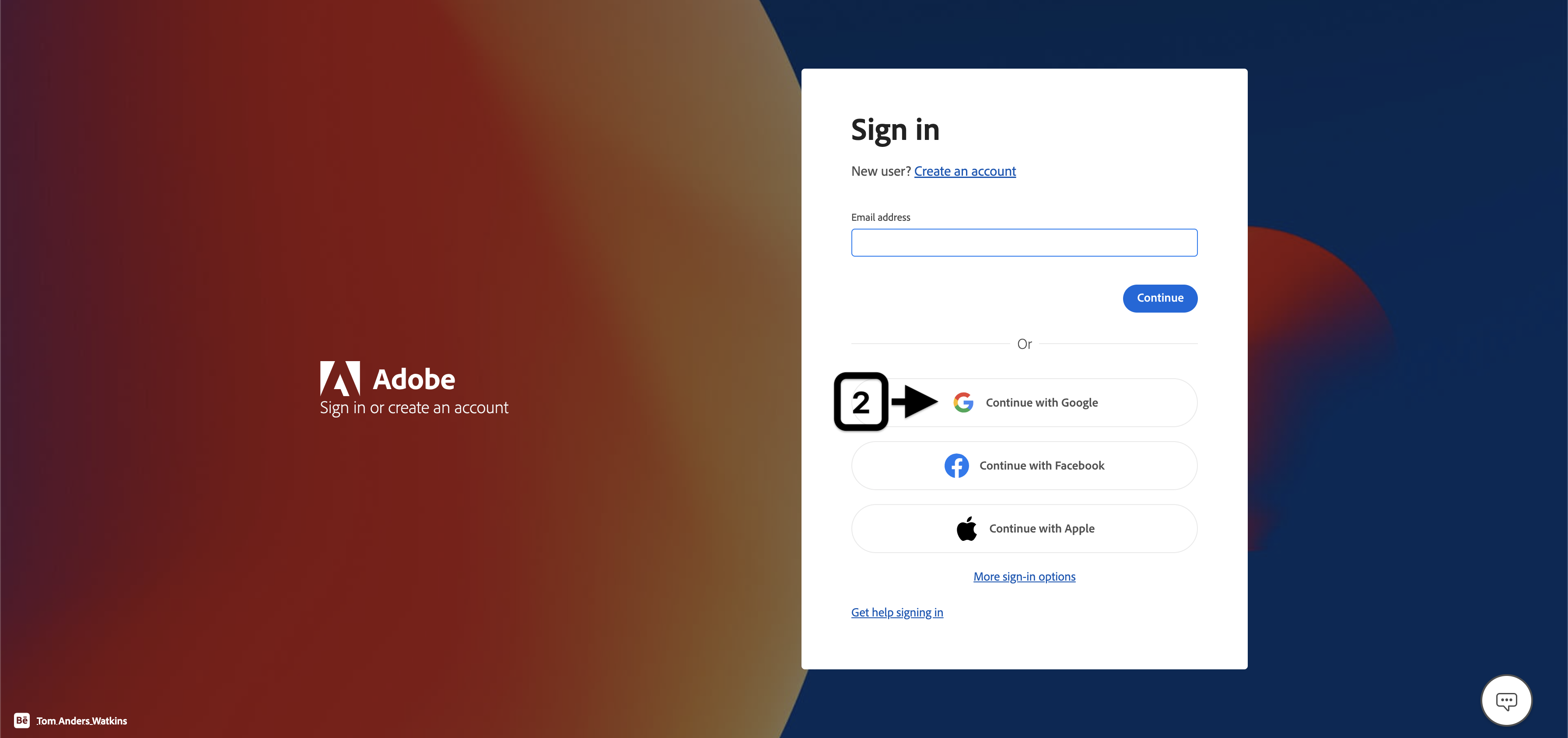
  2. Use your work/school email and choose the Company/School account if asked.

image-20251028-063335.png
image-20251028-064217.png


2

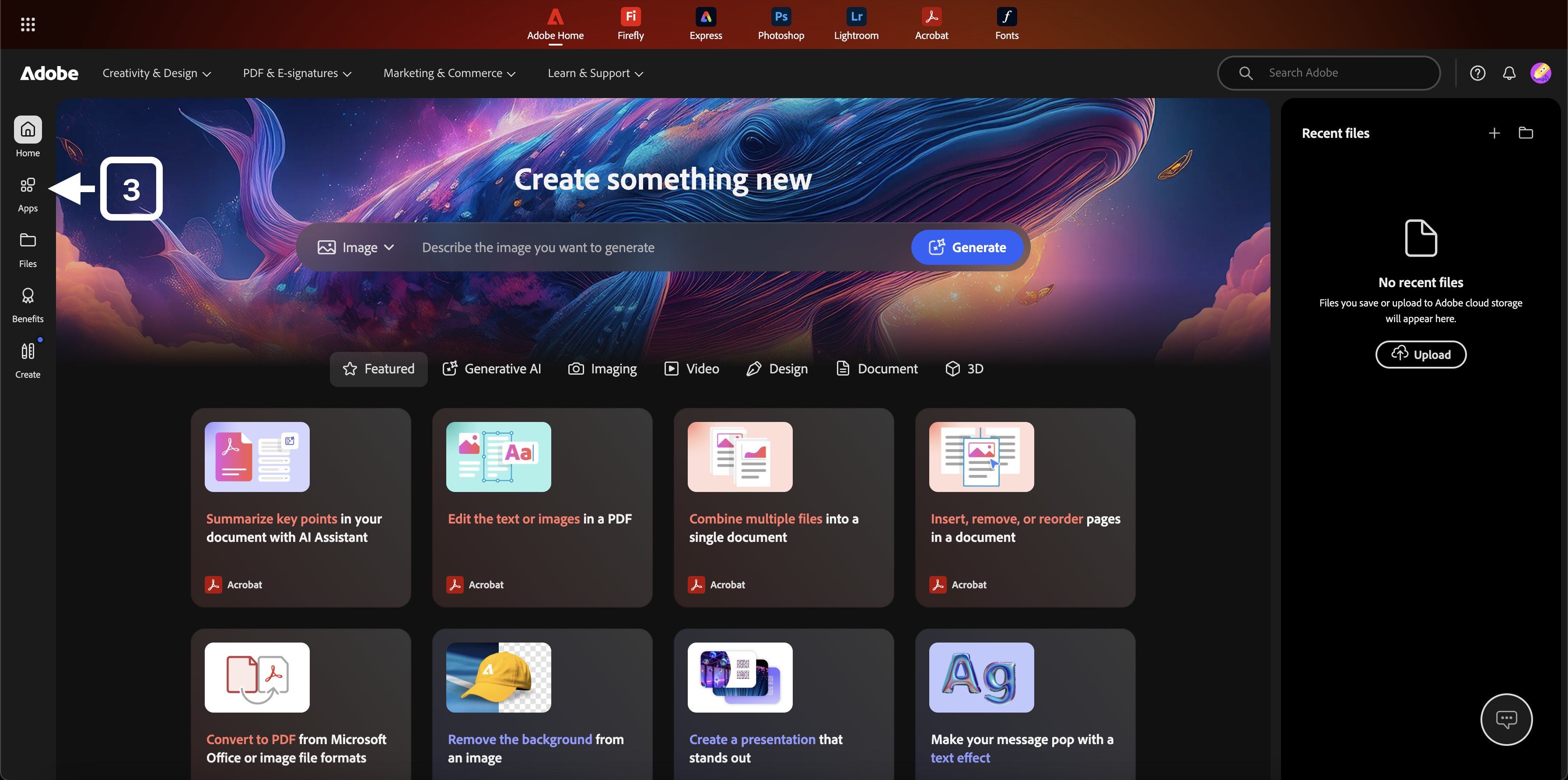
  1. Download the app: After sign-in, click your profile icon → View Account → Apps → Download Creative Cloud.

image-20251028-064659.png


3

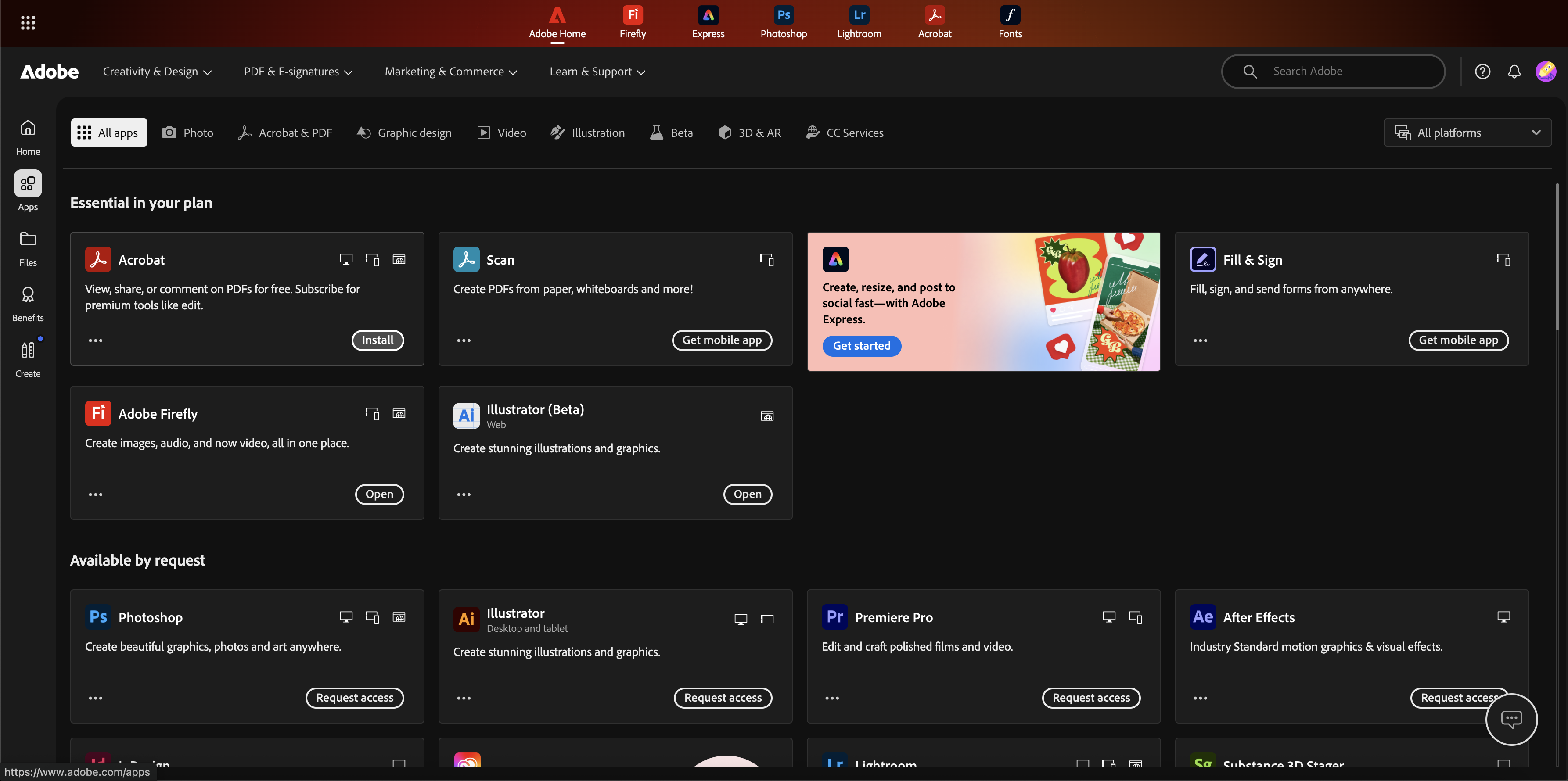
  1. Click “Install” Acrobat button and download app

image-20251028-064937.png


4

  1. Install Creative Cloud Desktop: Open the downloaded file and follow the prompts.


5

  1. Open & license it: Launch Adobe Acrobat.

    If you see Sign in, use your work Google account. That activates your license.


If you do not see the “Install” button next to the Acrobat app, please contact your IT Support Team.