How-to install Microsoft Office 365 apps

.

1

Open a web browser and go to:

👉 https://www.office.com

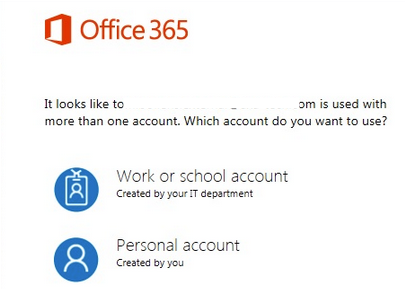
Login with your company (Work or school account) email.

image-20260205-192852.png


2

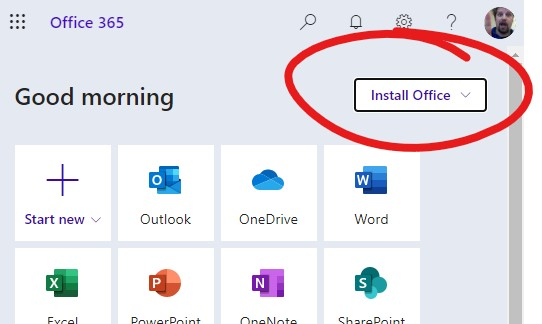
After signing in, you’ll land on the Microsoft 365 home page.

  1. Click Install apps

  2. Select Microsoft 365 apps

image-20260205-192946.png


3

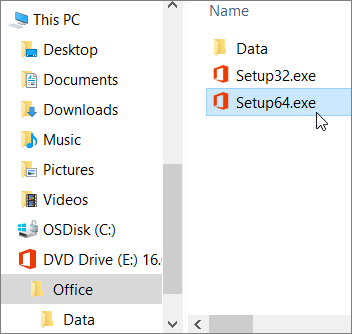
Your browser will download a small installer file:

  • Windows: OfficeSetup.exe

  • macOS: Microsoft_365_Installer.pkg

image-20260205-193042.png


4

Open the downloaded file.

On Windows

  • Double-click OfficeSetup.exe

  • If prompted by User Account Control, click Yes

On macOS

  • Double-click Microsoft_365_Installer.pkg

  • Follow the on-screen prompts

  • Enter your Mac password when prompted

image-20260205-193105.png


5

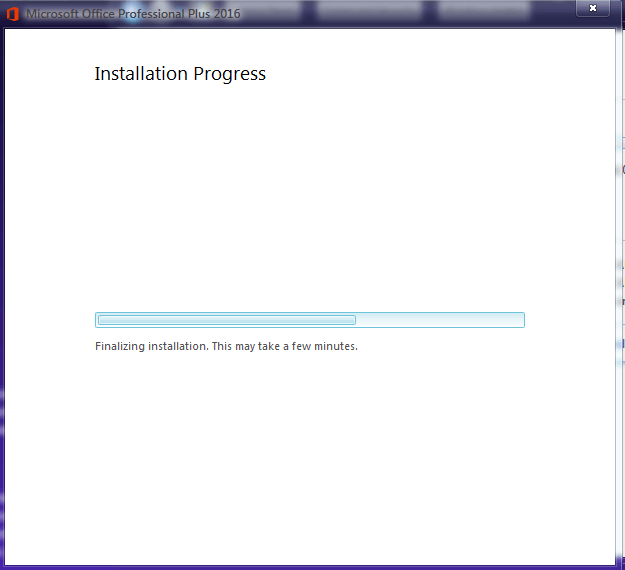
When finished:

  • Windows may say “You’re all set!”

  • macOS will close the installer automatically

No reboot is usually required, but don’t fight it if the OS insists.


6

  1. Open any app (Word, Excel, or Outlook)

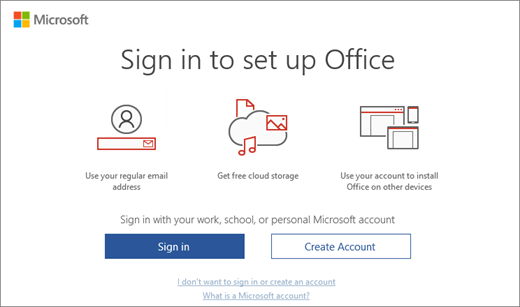
  2. Sign in with the same account used earlier

  3. Wait for “Product Activated”

image-20260205-193249.png