Skip table of contents

Setup Microsoft Multi-Factor Authentication (MFA)

First-time setup

If this is your first time signing in with your Microsoft work account, you’ll need to set up MFA.

1

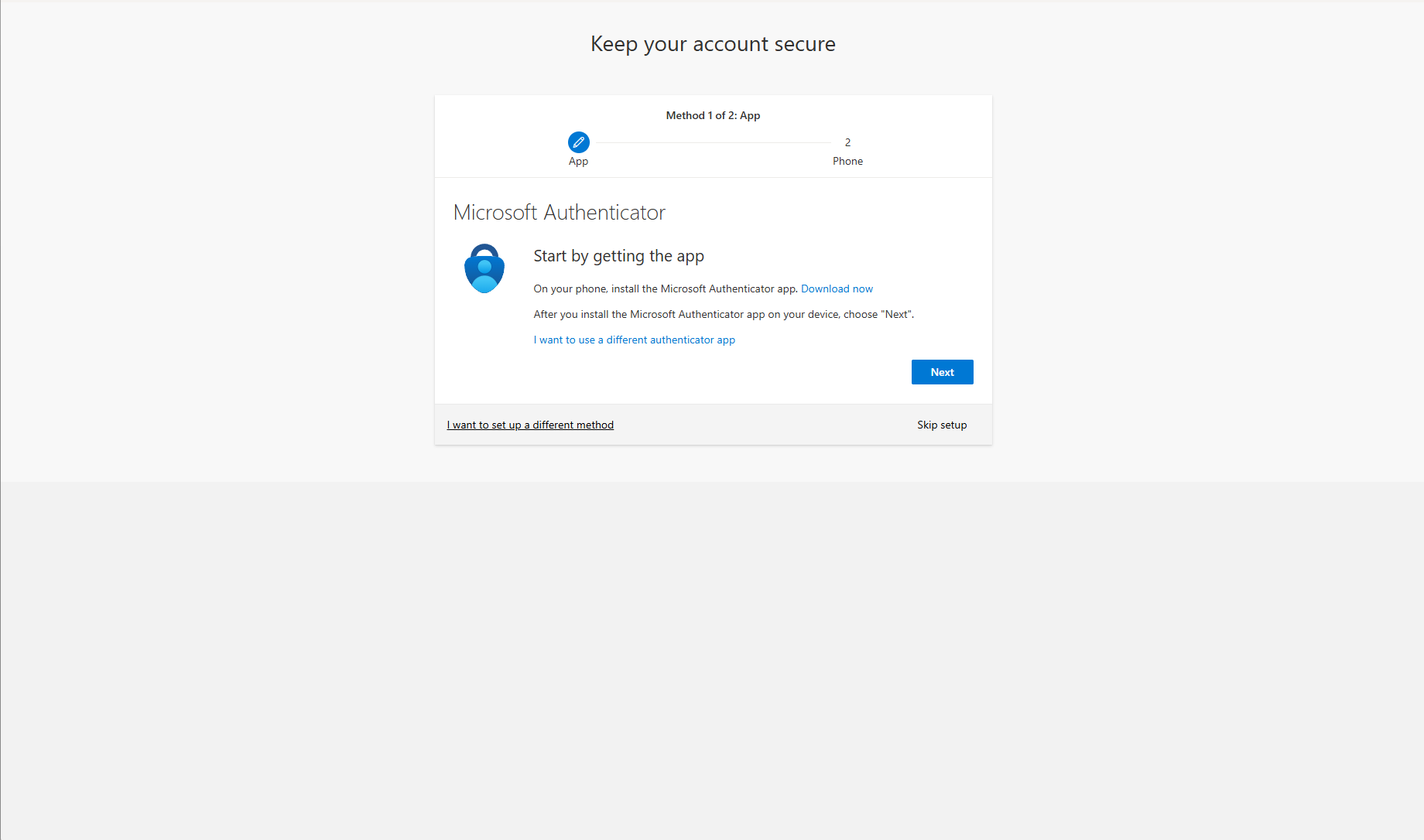
After entering your email and password, you’ll see a prompt to set up security verification.

  1. Click Next

Auth1.png
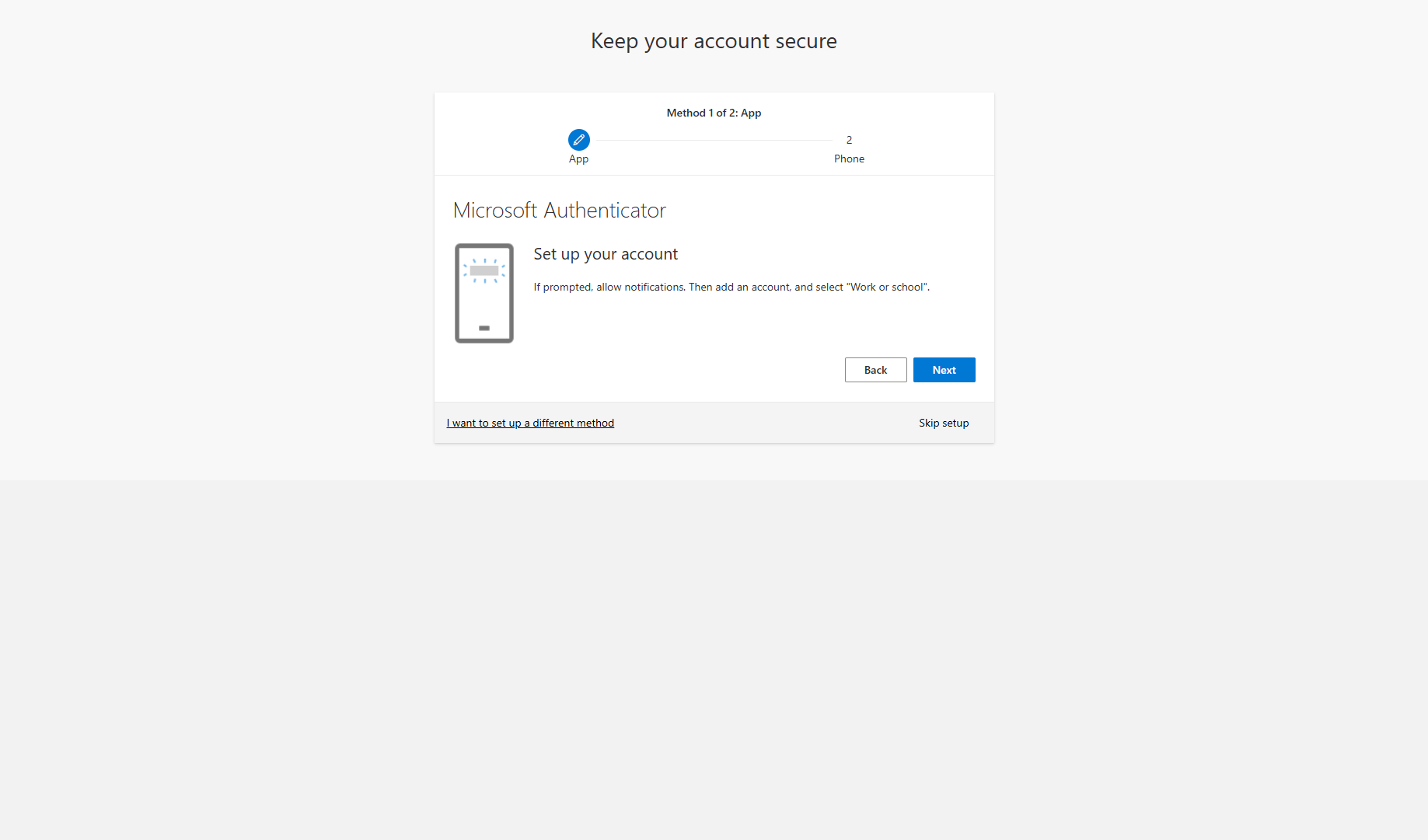
  1. Click Next

Auth2.png
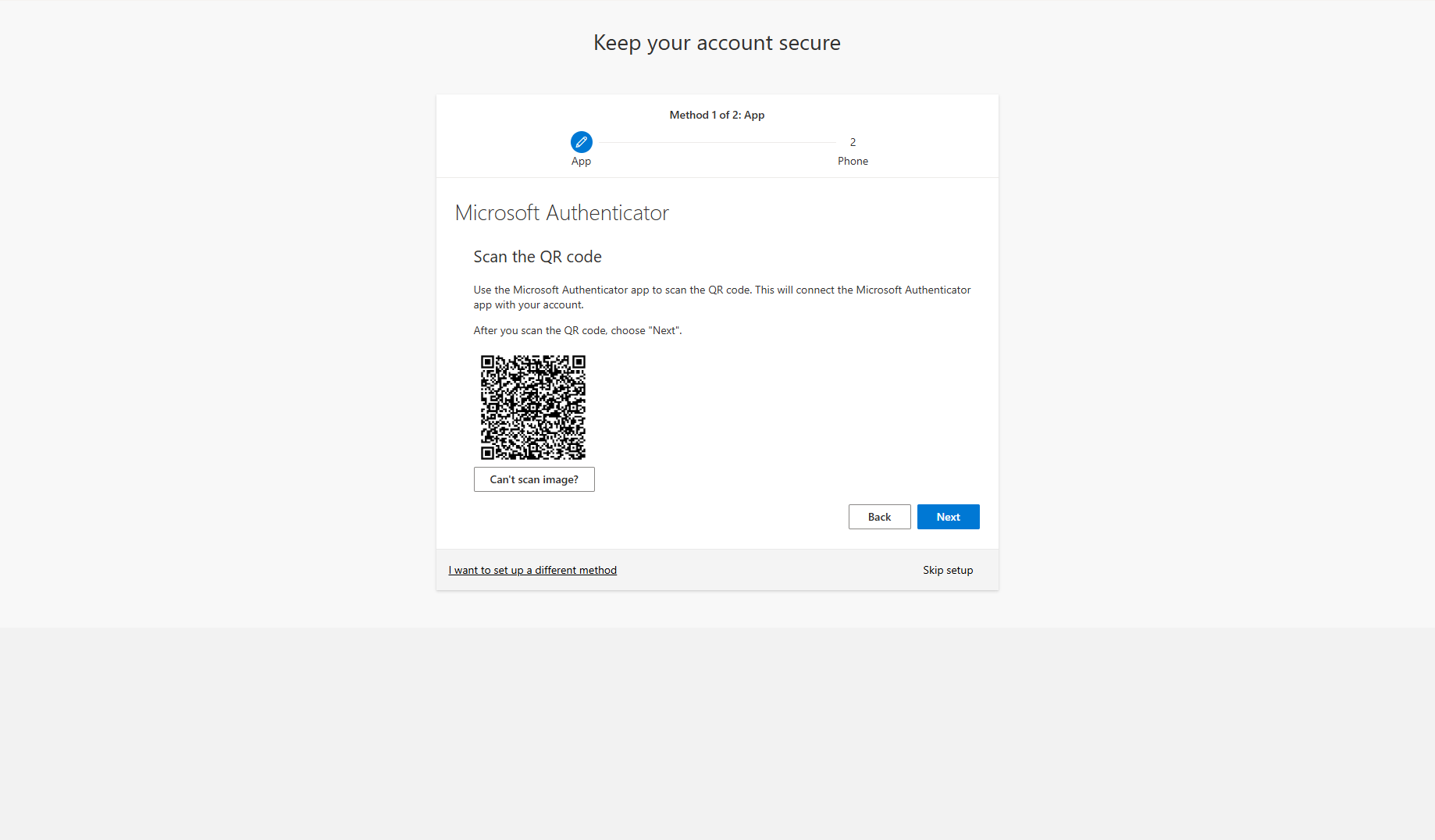
  1. Click Next

Auth3.png

2

Microsoft Authenticator app

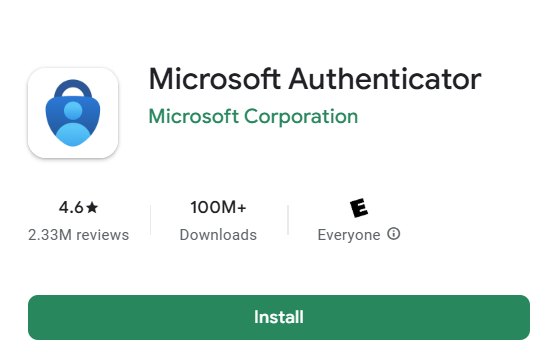
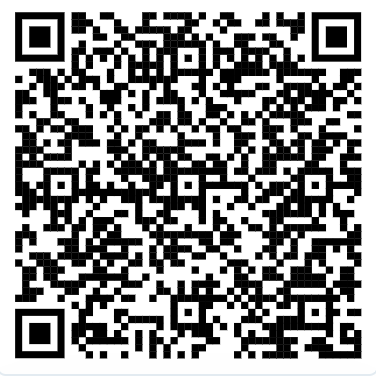
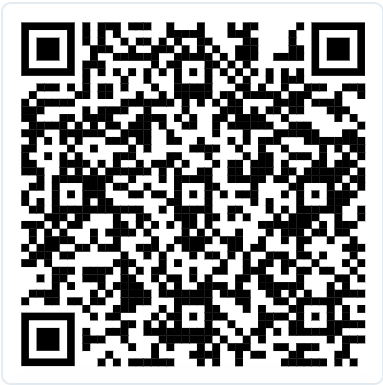
  • Download it on your phone (iOS/Android).

image-20251024-203038.png

Download for ANDROID device:

image-20251024-203517.png

Download for iOS device:

image-20251024-203612.png

3
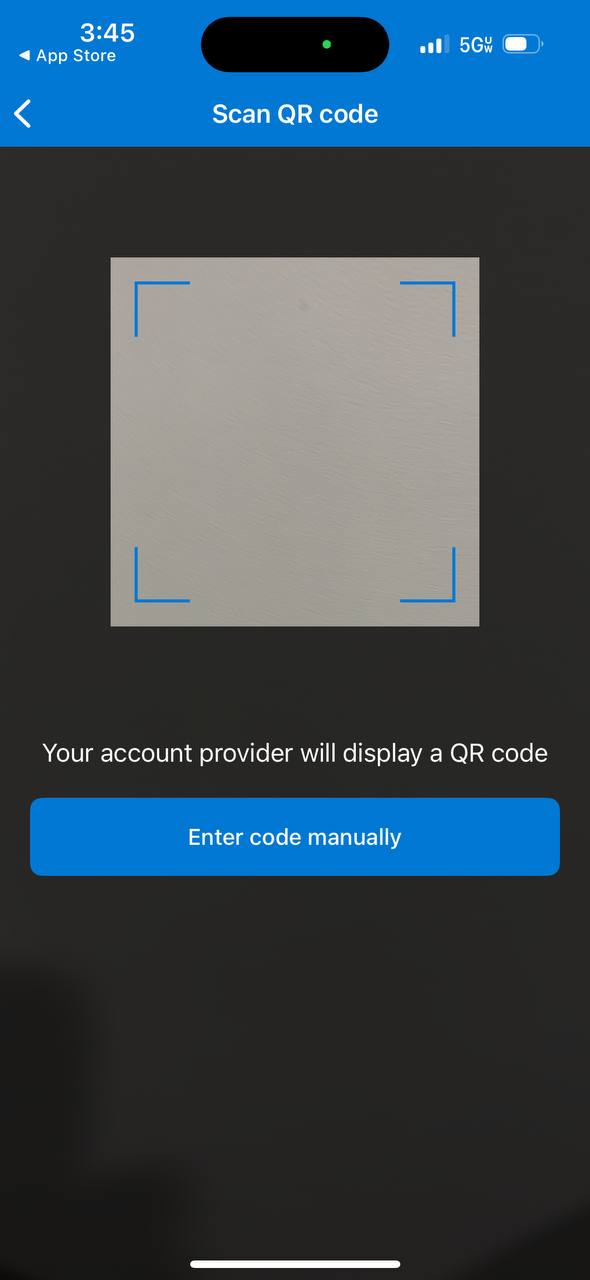
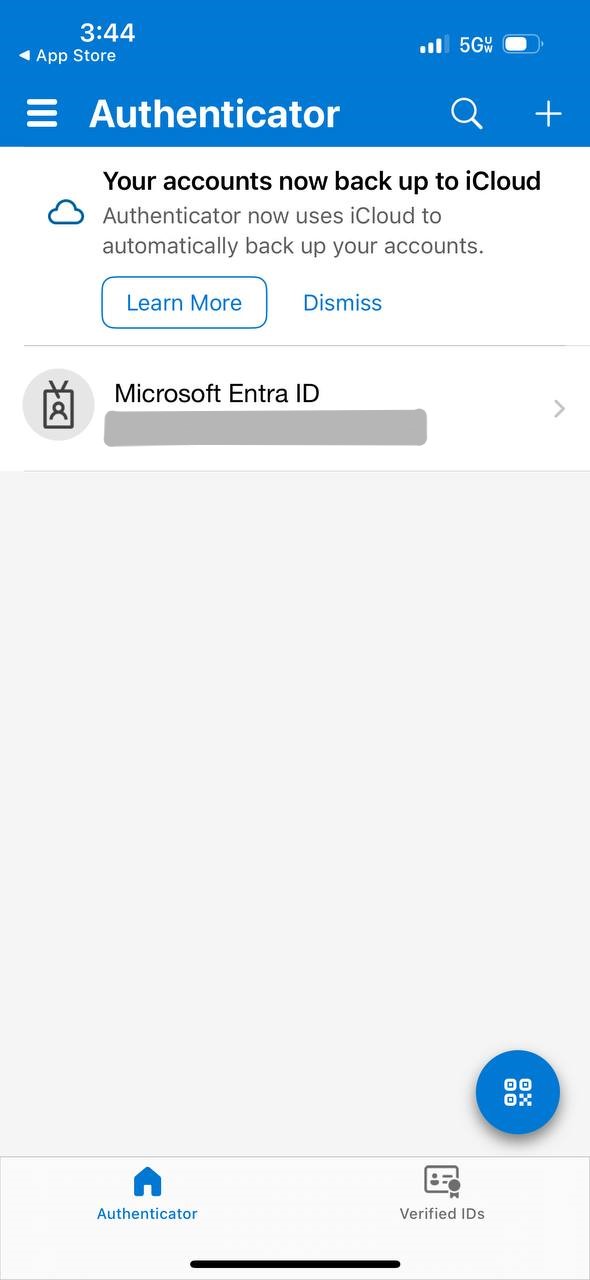
  • Open Microsoft Authenticator app

  • Scan the QR code shown on screen.

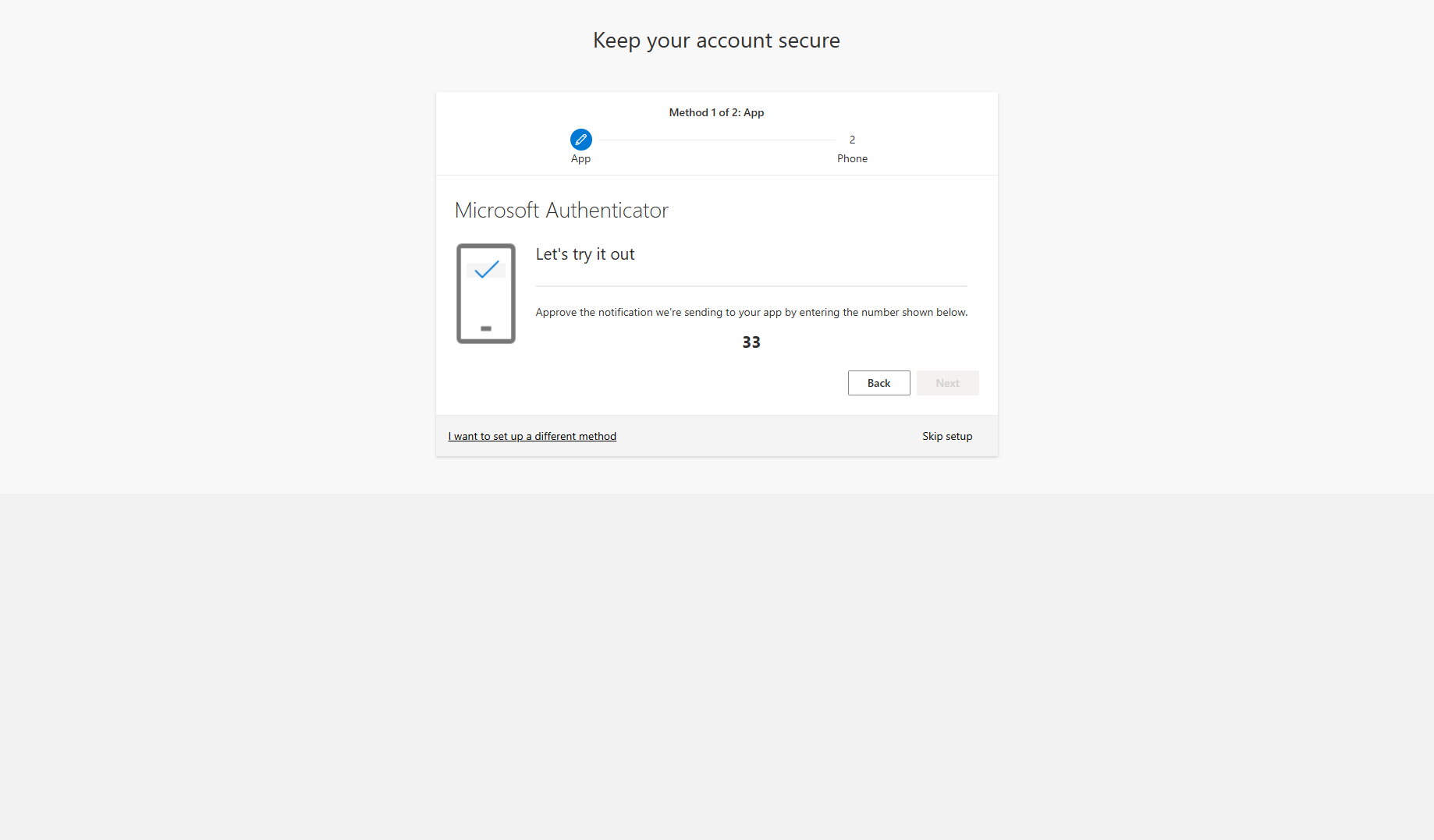
  • Confirm your setup by approving a test notification or entering the code.

  1. Use QR button on right down corner

    photo_2025-10-24_15-45-42.jpg
  2. Scan QR-code on your screen

photo_2025-10-24_15-45-45.jpg
  1. Enter correct number in Microsoft Authenticator app

Auth4.png
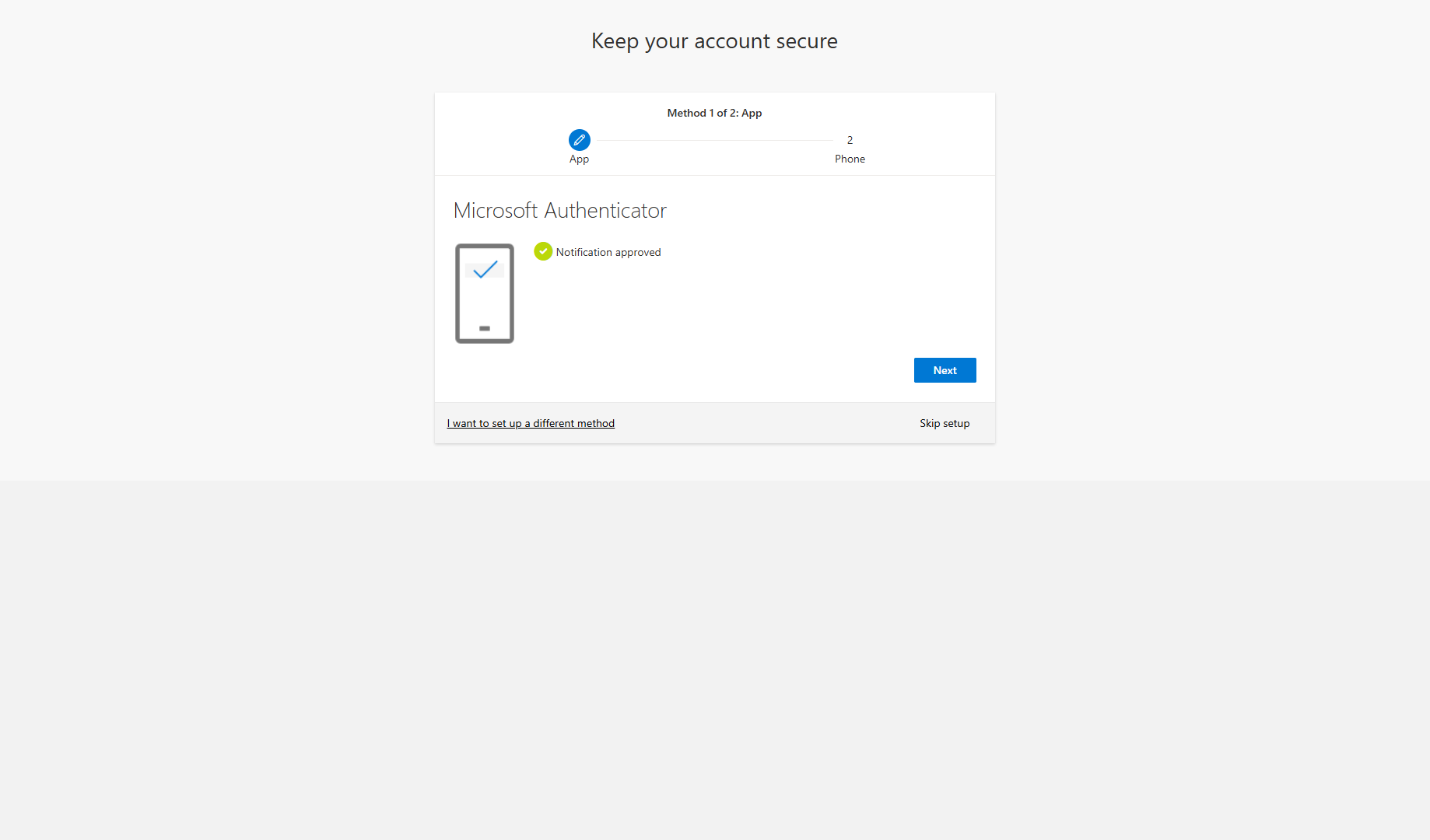
  1. Click Next

Auth5.png
4
  • Phone number (backup option):

    • Enter your number.

    • Receive a text/call with a code.

    • Confirm your setup by approving a test notification or entering the code.

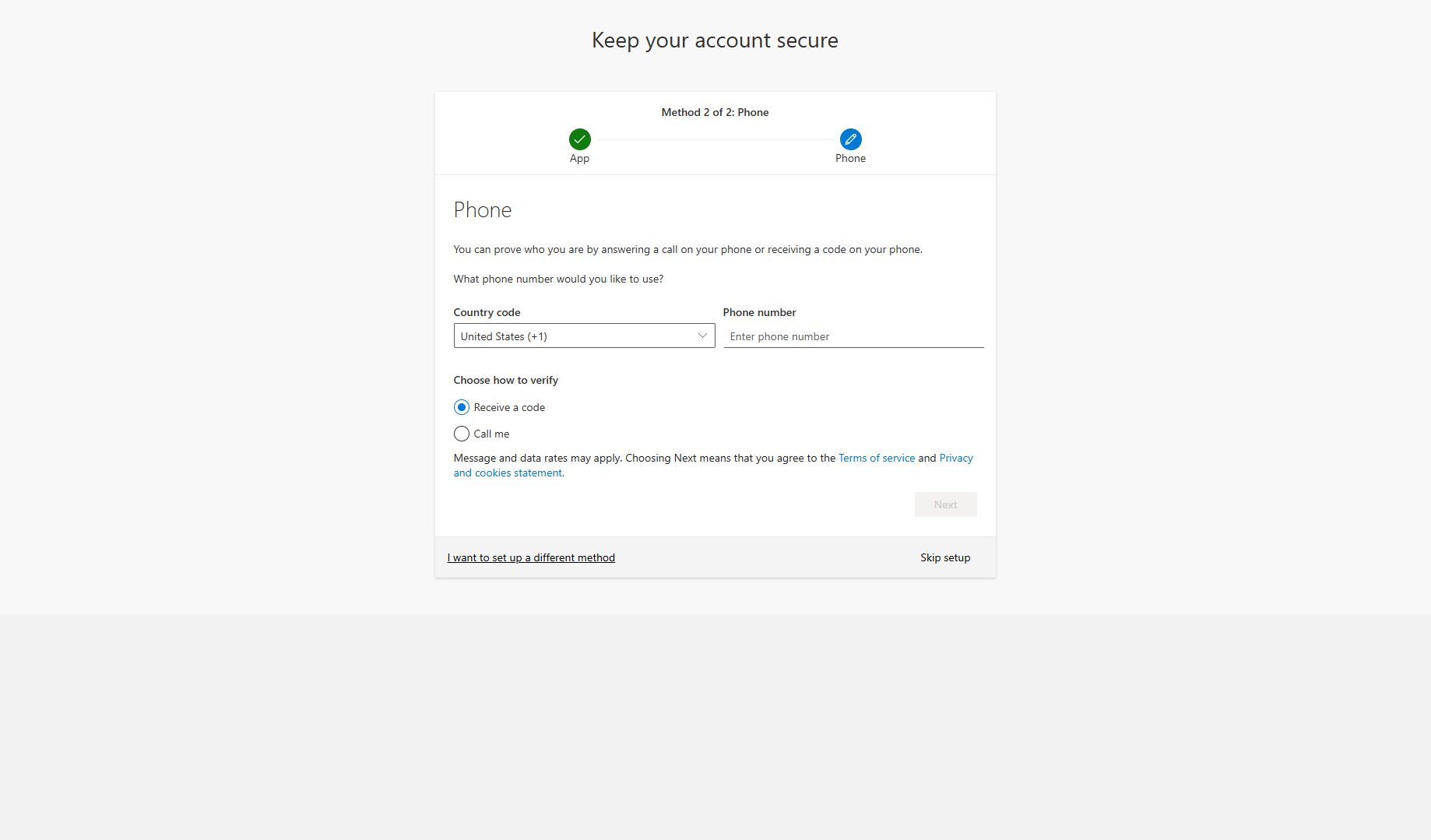
  1. Enter your phone number and click Next

Auth6.png
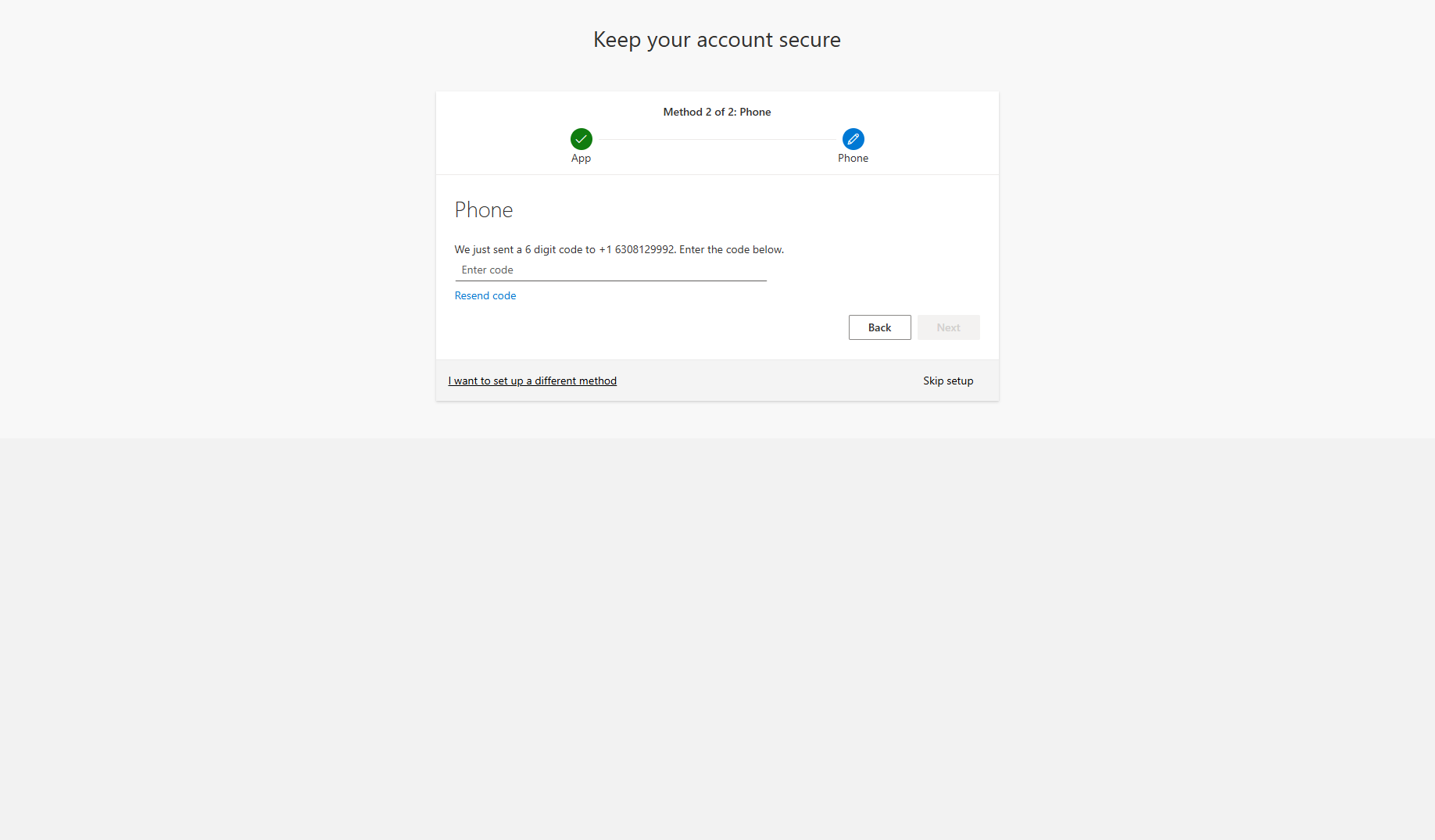
  1. Enter correct code in text field

Auth7.png
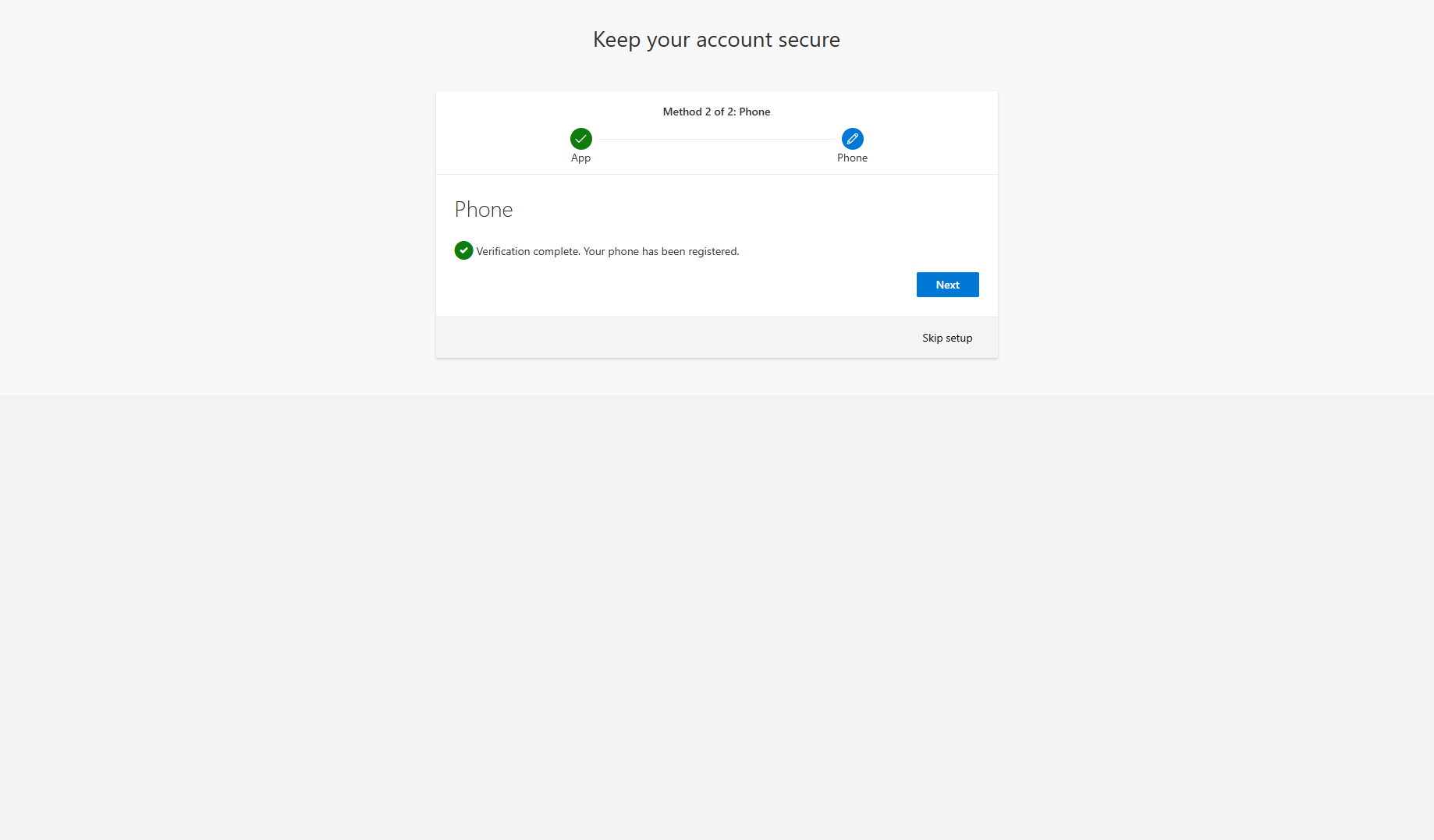
  1. Click Next

Auth8.png

5

From now on, each login may ask for a code or approval to keep your account secure.

JavaScript errors detected

Please note, these errors can depend on your browser setup.

If this problem persists, please contact our support.